

v0.19.0
Top prospects, daily digest reliability, and product polish
Top prospect taggingMark the companies you want to stay close to as top prospects — from a prospect’s detail page, row menus, or bulk actions. Filter Monitoring to top prospects only, spot top-prospect badges on updates, and see those companies called out in your daily digest so high-priority coverage stays front and center.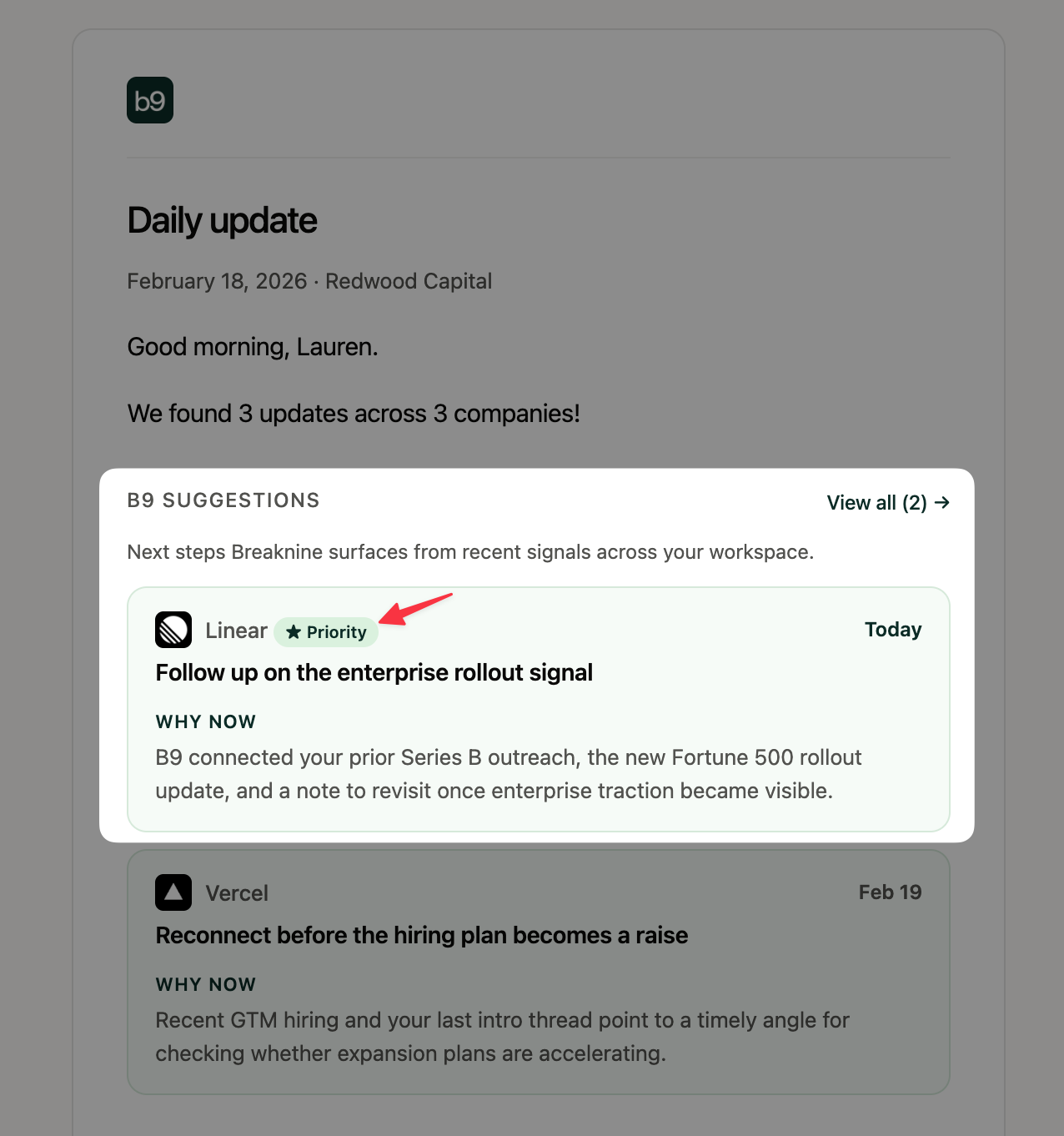 Daily digest reliabilityWeekday digests are more dependable: research prep runs early in the morning, and the 8:00 AM ET send assembles from work that’s already ready — so the email arrives on schedule with updates, instead of waiting on a long monitoring run.Product polish
- Portfolio sits lower in the sidebar (after Prospects) so higher-traffic surfaces stay easier to reach.
- Tasks date sorting correctly honors Newest first / Oldest first.
- Prospect search now matches industry in addition to company name and domain.
v0.18.0
Design cohesion, Monitoring polish, and website updates
A more cohesive app designBreaknine’s product UI is more consistent end-to-end — refreshed design tokens, typography, compact controls, and shared navigation so screens feel like one system. Choose Light, Dark, or System appearance from the sidebar, Settings, or mobile More menu; your preference sticks across sessions.Monitoring polish- Activity worth watching — the developing-trends rail has clearer labeling, copy, and an info tooltip on how related updates are grouped and how to read momentum (including on storyline detail pages).
- View source on review — updates waiting for review now link out to the original source, so you can inspect the article before approving or dismissing.
- Clearer M&A badges — acquisition and merger updates classify as M&A instead of looking like competitive moves.
v0.17.0
Monitoring overhaul and clearer CRM sync
News Feed is now MonitoringWe rebuilt the former News Feed into Monitoring — a dedicated hub for company updates. You get a redesigned monitoring feed with richer filters, update detail sidebars, score breakdowns, theme and storyline views, a monitoring pulse, and review of suppressed updates so you can see what’s shown vs held back. Continuous monitoring runs as a production flow underneath (signal collection, scoring, scheduled checks). Affinity-connected prospects also get monitoring profiles on sync so monitoring covers your CRM list.Clearer onboarding while CRM syncsAfter connecting Affinity, Attio, or Airtable, you see live sync progress instead of a stuck empty state. Prospects and home empty states now distinguish: no integration connected, currently syncing, or connected with no updates yet.v0.16.0
Affinity email activity, B9 suggestion improvements, and prospect activity
Affinity email activityFor Affinity users, email interactions now sync into each prospect’s activity timeline in Breaknine. You can see who sent or received messages — labeled by user or team member — alongside other prospect updates. Email activity stays in the timeline and out of editable notes, so your notes workspace stays clean.B9 suggestion improvementsB9 suggestions are sharper and easier to act on across the app:- Same-day due dates — suggestions tied to a fresh update now default to the day they’re generated, instead of drifting several days out without a clear reason.
- Fresher daily email — your daily digest only surfaces B9 suggestions created that day, so you won’t see suggestions from prior days resurfaced in the email.
- Consistent Next Actions experience — the Next Actions page now uses the same B9 suggestion detail sidebar as the home feed, with matching complete, restore, archive, and generate-outreach actions.
v0.15.0
Daily digest B9 suggestions, CRM sync preview, and Affinity reliability
B9 suggestions in your daily emailDaily update emails now includes a dedicated B9 suggestions section first, if suggestions exist. Each suggestion is grounded in fresh company updates, CRM notes, and prior outreach — and links straight to the saved next action in the app so you can review evidence and act in one click. Breaknine suggests an outreach path based on gathered context, company updates, notes, and user set reach out triggers.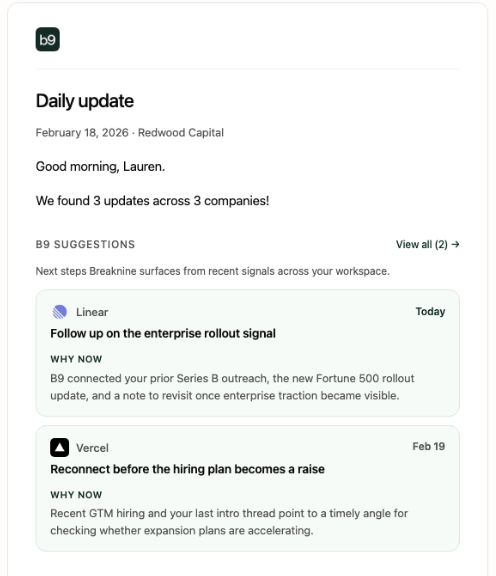 Preview Affinity and Attio companies before you syncWhen you connect Affinity or Attio, you can preview what Breaknine will pull in before a sync starts. Review the companies, fields, and records that will be imported so you know exactly what to expect before data lands in your workspace.Affinity sync reliabilityAffinity owner matching now prefers stable owner IDs instead of email alone. If Affinity returns different email aliases for the same owner across API calls, your list entries still sync correctly instead of being filtered out.Sequence start fixFixed a regression where Start sequence (in the outreach panel) could appear to succeed in the UI without actually activating the sequence on the server. Starting a sequence now persists through the API as expected, including when Gmail send is unavailable — with a clear tooltip explaining why start is disabled.
v0.14.0
New website and beta access
Breaknine.ai redesignWe rebuilt breaknine.ai with a clearer story for private markets teams: what Breaknine does, who it’s for, and how to get started. The updated site is faster to scan and reflects actual product images and workflows. We also launched our breaknine blog where you can see our latest thinking and sourcing tips.Beta access and the waitlistBeta access is easier to request on the revamped website. You are no longer navigated to a google form but rather can sign-up directly on the breaknine site. Prospective users can sign-up to see the platform & be onboarded, or just receive our newsletters & stay up to date with feature launches.What’s nextWe’re onboarding initial beta users while continuing to refine the platform based on feedback from design partners. If you’re already in the app, nothing changes in your workflow — this update is about how we present Breaknine to new users and how interested firms can get access.v0.13.0
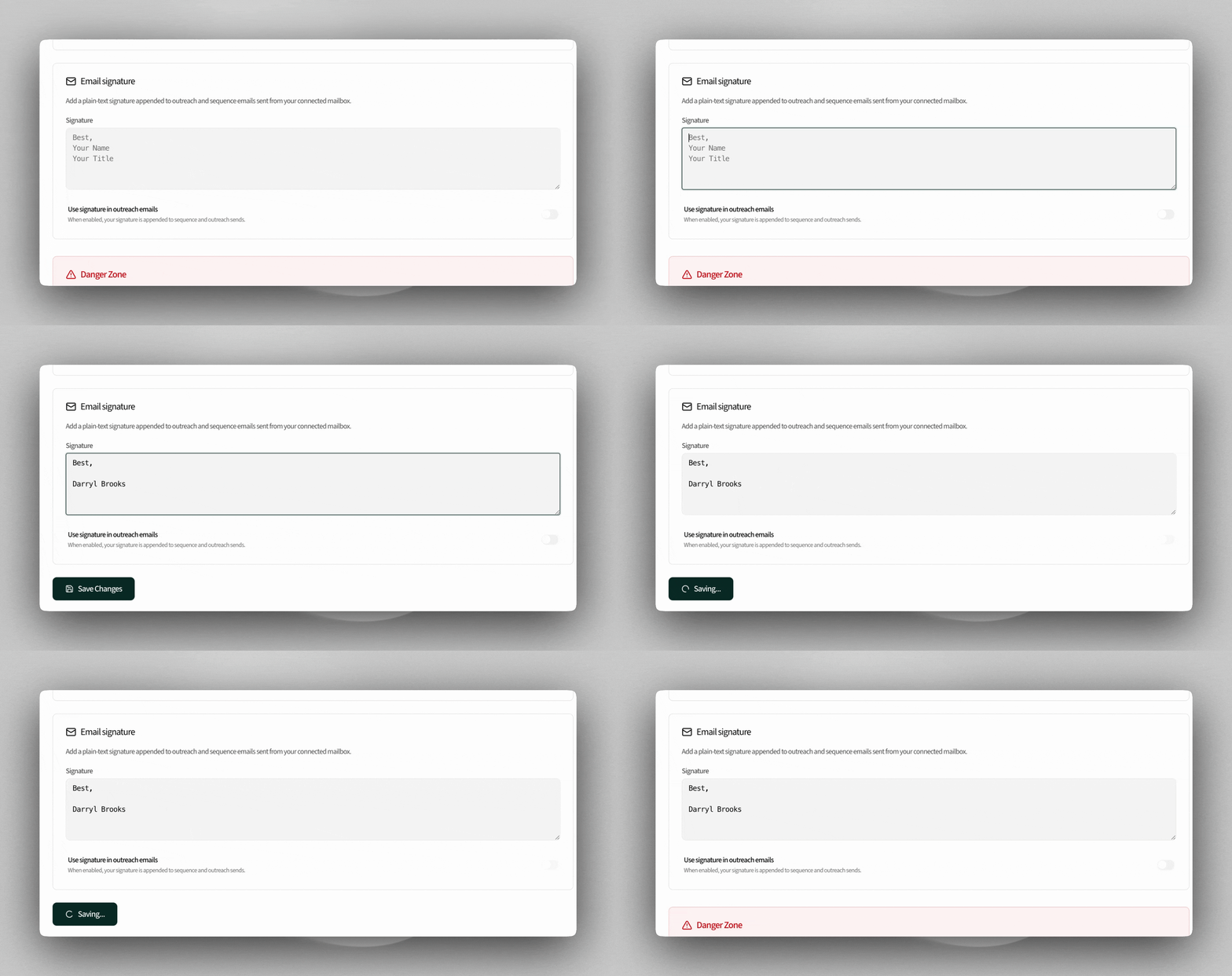
Email sequences, bespoke templates, signatures, and outreach connections
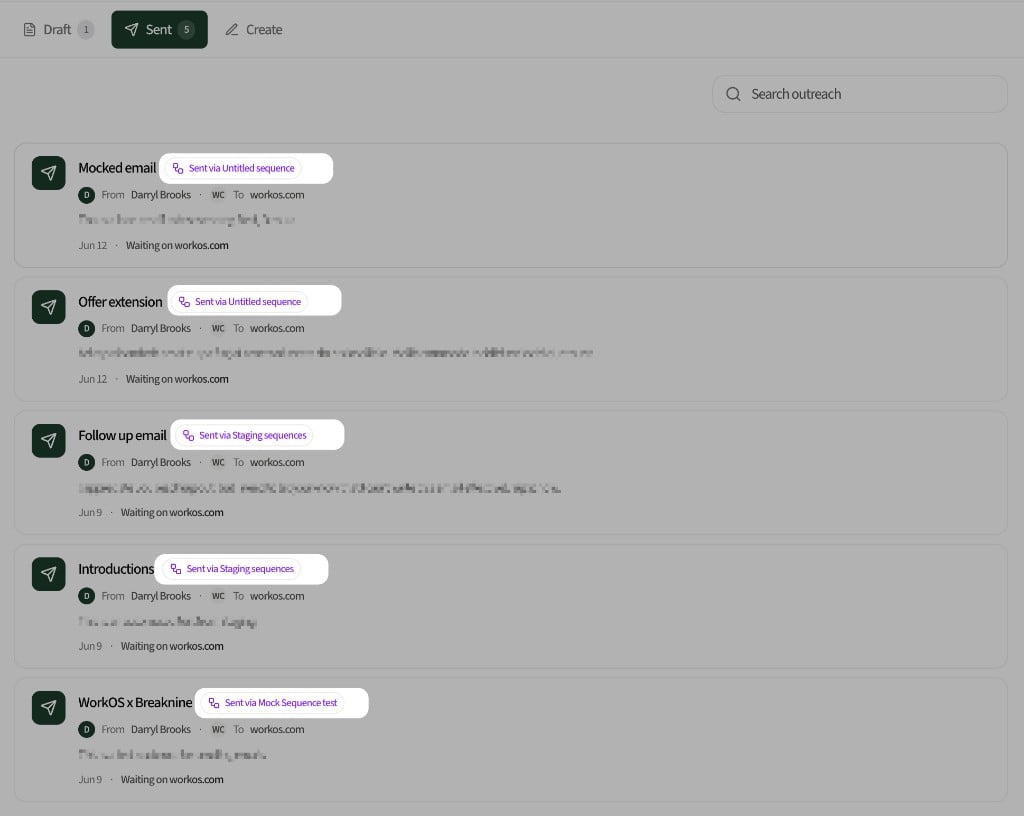
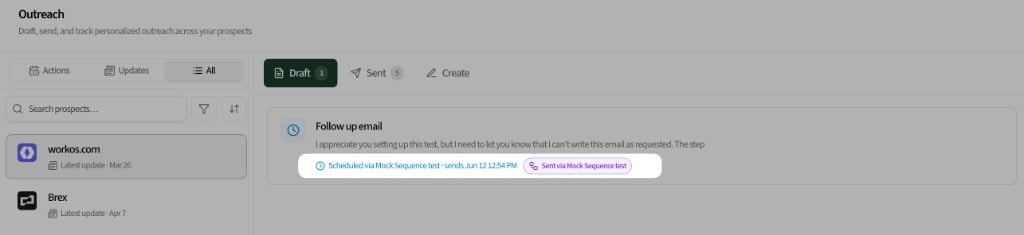
Email sequencingBreaknine now supports multi-step email sequences — build a canvas of timed outreach steps, assign recipients, and track progress from a sequence ledger. Start sequences from scratch or from outreach you have already drafted, and manage active, paused, and completed runs in one place.Bespoke sequence templatesChoose from bespoke templates when creating a sequence so you are not starting from a blank canvas every time. Templates pre-fill step structure and timing patterns you can customize per prospect or campaign.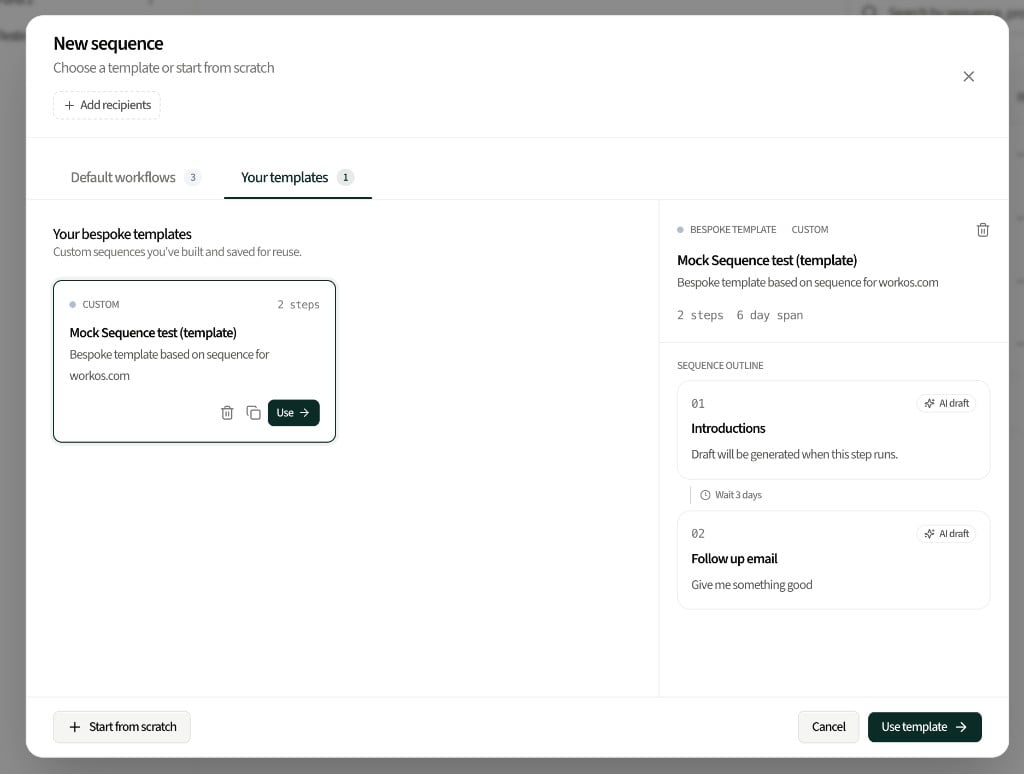
v0.12.0
Monitoring schedule and app experience
Prospect monitoring on scheduleBackground checks for monitored prospect URLs are more dependable. Update scans stay on their daily, weekly, and monthly cadence without scheduler delays, so trigger-based updates surface more consistently in your feed.App experience updatesMade significant behind the scenes improvements for app experience to run smoothly and efficiently.v0.11.0
Audit log, recoverable deletion, and Affinity configuration improvements
Audit log in SettingsYou can now review an audit log under Settings to see important actions taken in your workspace. The log helps you trace who changed what and when, without digging through individual screens. You will also be able to restore previous versions of the workspace.Recoverable deletionWhen you delete supported user data, Breaknine can capture a recovery bundle so deleted items may be restored. Delete confirmations explain when recovery is available. Integration disconnects and purges stay non-recoverable by design; integration data deletions follow the new recoverable flow where supported.Affinity configuration errorsThe Affinity configuration modal now shows clear error messages instead of generic[object Object] text when something fails during setup or save. So you’re now able to see exactly what is failing & we can better triage failed set-ups. Affinity read requests are also cached for faster, more reliable configuration loading. Meaning, we don’t use as many API calls when syncing Affinity data.v0.10.0
Mobile app experience and outreach draft fixes
Breaknine on mobile (web-app)Breaknine now works as a progressive web app on your phone. Add it to your home screen from Safari or Chrome to open the app in a full-screen, app-like experience. Core flows — home, prospects, outreach, notes, next actions, and settings — are laid out for smaller screens with a bottom navigation bar and mobile-friendly panels so you can scan updates and draft outreach on the go.Outreach drafts and update statusClearing an outreach draft no longer leaves related updates stuck as used. When you clear a draft, Breaknine releases those updates back to New or Active so they show again in the recent updates sidebar and you can reuse them for another message. Updates tied to protected drafts — for example, one you already opened in Mail — stay linked as before.v0.9.0
Microsoft Outlook, prospect contacts, and outreach editor improvements
Microsoft Outlook integrationYou can connect Microsoft Outlook for email and calendar from Settings > Integrations, alongside or instead of Google. After you connect, Breaknine syncs the Outlook threads and events that map to your deals so your activity feed and notes reflect your real mail and calendar work.Add and remove contacts on the prospect overviewThe contacts card on the prospect overview now supports adding and removing contacts manually when CRM or search data is incomplete. Those contacts are stored with the prospect and show up in the Outreach recipient picker when you draft a message.Quick edits for outreach draftsOutreach drafts support quick in-editor changes using the same markdown editing pattern as the rest of the app. Streaming generation stays separate from the editable draft, and subject edits plus autosave feedback behave consistently while you refine a message before you send it.v0.8.0
Portfolio URL import, configurable tracking, and notes improvements
Import portfolio companies from a URLYou can now add your entire portfolio in one step. Go to Settings > Portfolio, paste your firm’s portfolio page URL, and Breaknine will scrape the page and automatically add the companies it finds — no manual entry required.Configurable prospect trackingYou can now control exactly which companies appear in your home feed and daily digest, and how often. Each prospect, portfolio company, and competitor can be individually set to Daily, Weekly, or Monthly updates — or turned off entirely. This means your feed only surfaces the companies you actually care about, at the cadence you want.Notes sidebar improvementsThe notes sidebar is now 20% wider for easier editing. Clicking a note opens it directly in the quick editor, prefilled with the title, content, and linked prospect. Version history has moved into the three-dot menu on each note card to keep the sidebar clean, and a History button in the editor lets you browse past versions with hover previews.v0.7.0
Outreach & competitor page fixes & improvements
Outreach generation improvementsOutreach generation has been improved to produce higher quality, more relevant email drafts. The generation logic now takes more of your prospect context into account.Mark outreach as completed after generatingWhen you generate an outreach email, a dialog box now appears in the lower-right corner of the screen asking if you want to mark it as completed. Selecting Yes automatically marks the related updates as Used and moves the company to the correct position in your left panel. Selecting No or dismissing the dialog box leaves everything as-is. If no, you will see this task to send an outreach appear later.Company type filter across all outreach tabsA company type filter is now available across all three outreach tabs — Prospect, Competitors, Portcos. The filter allows you to only see a specific classification of company and persists when you switch between tabs.Competitor page improvementsThe competitor page has been updated with a number of fixes and improvements to make it more reliable and easier to use. Data displayed is more consistent and the page reflects the latest state of a prospect’s competitive landscape.v0.6.0
Outreach tab, Affinity sync improvements, Custom email snippets, and more
Outreach tabWe’ve implemented an outreach section where you can not only do your outreach based on company updates & next actions (or reminders) but also outreach to any prospect. Outreaches are organized into two sections; “Actions” referring to B9 suggested next actions or your set next actions from your CRM, and “Updates” referring to B9 sourced prospect updates to reach out with. The prospect update or notes you use to inform the outreach shows a status badge — New or Used — so you can tell at a glance which updates & notes have been referenced in past emails. The interface also tracks email events for sent outreaches, including replies.Affinity Reminders & Notes syncIf you have Affinity connected, your Next Actions (reminders) & notes sync into Breaknine. Previously, the Next Actions field was missing from the Affinity configuration panel — this is now resolved and reminders will appear alongside your other Affinity data. You can get to reminders / next actions via the “next actions” tab and these also inform the outreach tab.Custom email snippetsYou can now create your own reusable text snippets and insert them anywhere in an outreach email. Type / followed by a trigger word to pull up your snippet menu and select the one you want. Snippets support custom variables so you can personalize them on the fly without rewriting the same blocks of text every time. You can create snippets in settings > snippets > create new snippet.Dismiss tasks without opening themYou can now dismiss notifications directly from the Tasks page without clicking into each one first. A dismiss button is available inline on each task in the list.v0.5.0
Outreach from the prospect page, prospect intelligence, and command palette updates
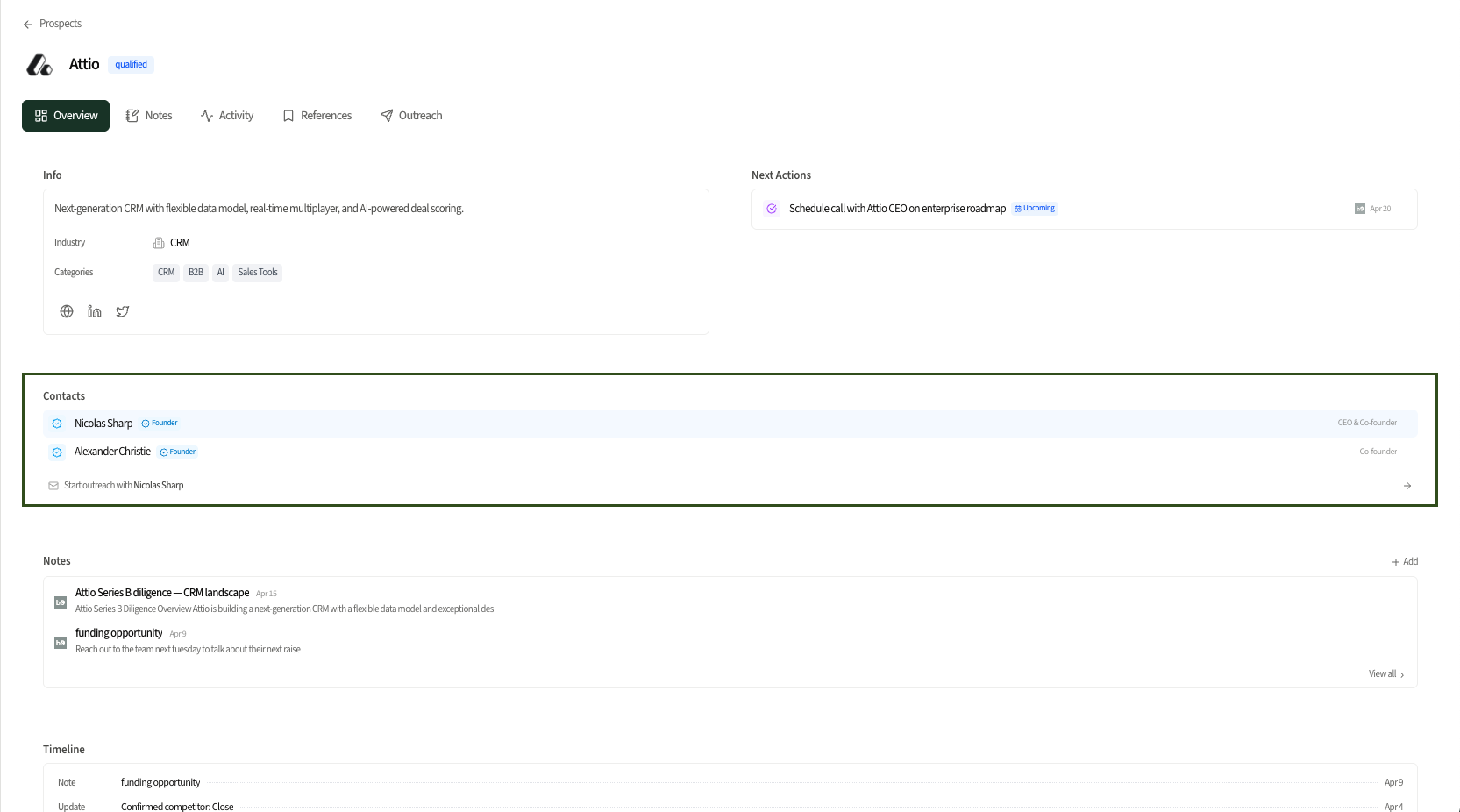
Outreach generation from a prospect’s pageYou can now draft and send outreach messages without leaving a prospect’s detail page. A new Outreach tab is available on each prospect page — generate a message, copy it, or send it directly via email. Outreach is generated using the prospect’s enriched data including company context, contacts, and recent news. You can also see a version history of all of the changes you’ve asked the outreach chat to make to your email.Founders on the prospect overview pageThe prospect overview page now surfaces founder and key contact information — pulled from CRM contact info, your emails (if you’ve enabled this), and web search. You no longer have to navigate to a separate tab to find out who to reach out to. Contacts are displayed alongside company details as soon as you open the page.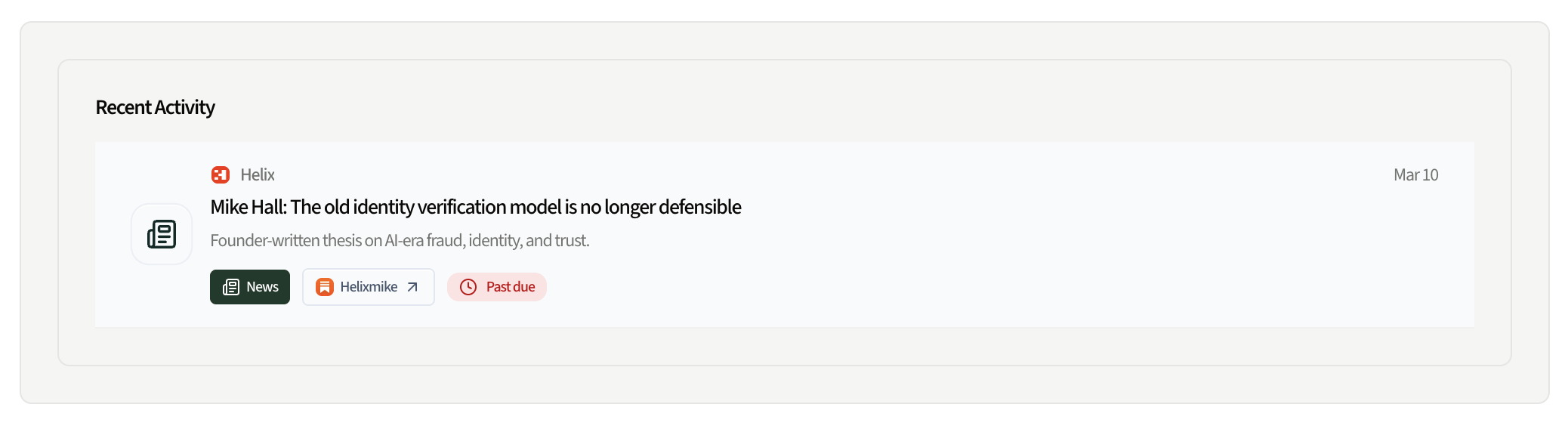 Source badges on activity feed updatesEach update card in the activity feed now shows a small inline badge identifying where the update came from — Substack, company blog, or web/news. You can see the source platform at a glance without needing to click through to the original link.
 Command palette redesign (⌘+K)The ⌘+K command palette has been reorganized into two distinct sections: Navigation (go to any page in the app) and Actions (create prospects, trigger outreach, generate messages, and more). Keyboard shortcuts are now shown inline next to relevant actions, and previously missing destinations and commands have been added so ⌘+K works as a complete control hub across the app.
v0.4.0
How to integrate, connect, and utilize new features
Gmail IntegrationYou can connect your work Gmail via Settings > Integrations > Connect to Gmail. You will see the security screen because we are currently in the audit process with Google, but you can bypass by pressing “Go to Breaknine” in the bottom left corner.Proactive Outreach SuggestionsBreaknine is now surfacing proactive outreach suggestions based on your proprietary notes on a prospect, their publicly available information, and triggers you’ve set for re-engagement. You can see proactive outreaches on the home screen and also on the “Suggestions” tab at the top of the “Tasks” page.Portfolio Company TrackingWe are now tracking portfolio company updates in the same way we are tracking prospects. Add your portfolio companies by going to Settings > Company > Portfolio. Then you’ll see all of your portcos in the “Portfolio” tab on the left panel. You’ll also be able to filter by only portco updates at the top of the homescreen.v0.3.0